
Talk to your lab
Dictate a message, have a reply read aloud, or put your hands away and hold a whole conversation.
Hands-free, start to finish
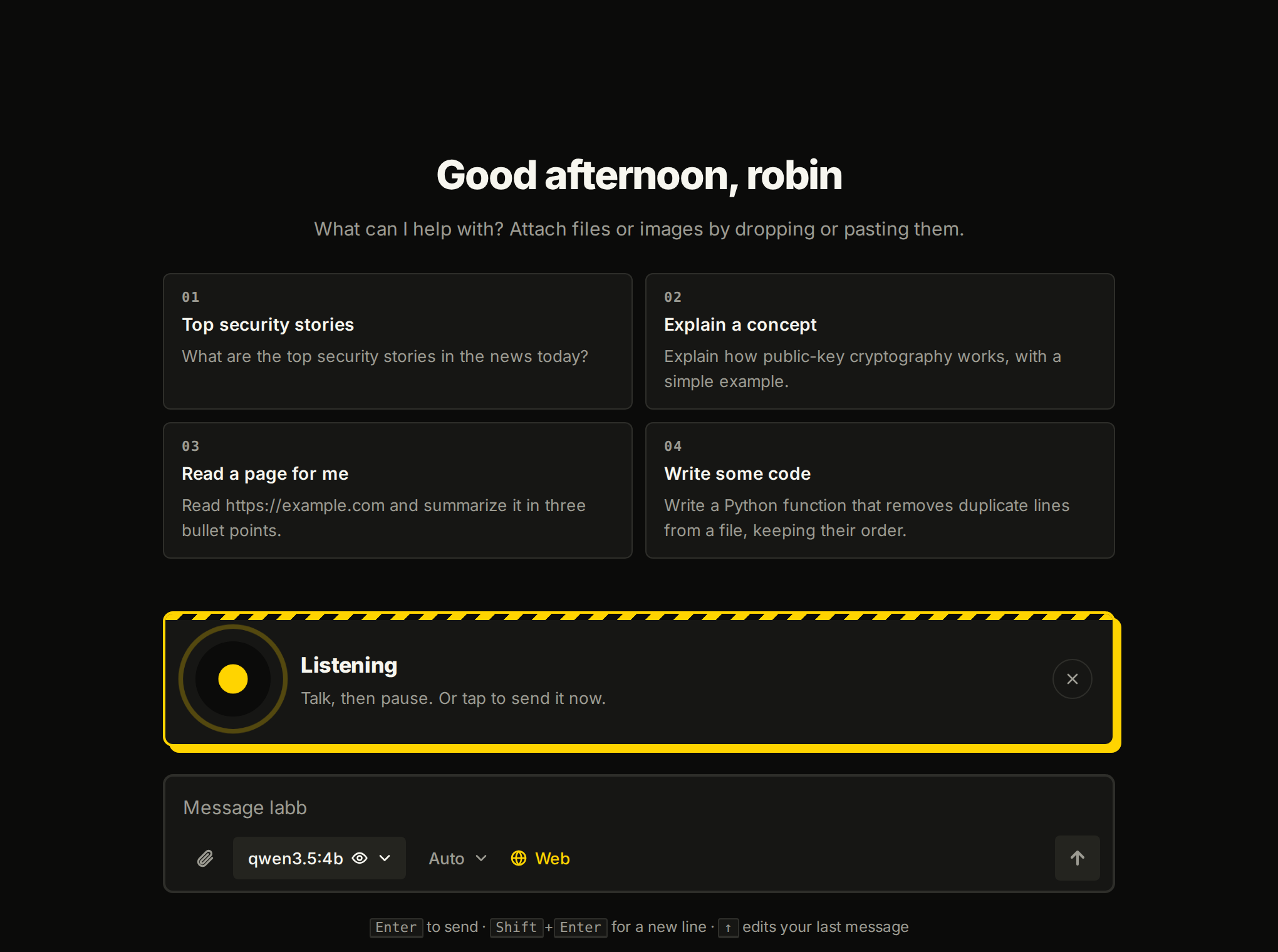
It listens until you pause, sends what you said, reads the reply aloud and listens again.
The big button always does the next thing: send what you said now, stop a reply that's still being written, or cut in while it speaks.
Three ways to use your voice
- Dictate
- Click the mic, talk, click again, and what you said is written into the message box.
- Read aloud
- Every reply has Read aloud. It starts after the first sentence is ready, and a bar lets you pause, speed it up to 2× or stop. So does Esc.
- Voice mode
- The full conversation, as above.
Speech stays on your own machine
With Docker Compose, labb runs speaches next to the server: faster-whisper to listen, Kokoro and Piper voices to speak. labb downloads the models it needs, a few hundred MB, which takes a minute or two the first time.
Admins choose the models in Settings → Models → Speech, and Test says a sentence and listens to it. You can also use OpenAI's speech models, or any server that speaks OpenAI's audio API. With OpenAI, your recordings leave your network.
Speech works everywhere else too
- Recordings as documents
- Add MP3, M4A, WAV, WebM, OGG or FLAC files up to 20 MB. They're written down as they're added and searched like any other document.
- In workflows
- Studio has Transcribe and Speak steps.
The browser only lets a page use the mic on localhost or over HTTPS, so run ./setup.sh https to talk from your other devices. See Get labb.