
From one paragraph to a checked workflow
Describe a job in plain words. labb draws the steps, you run them on a real example, and you can open every step to see exactly what went in and what came out.
Describe it
Open Studio in the sidebar and press New workflow. Say what starts it, what it looks at and where the result goes, then press Draft it. Nothing is saved until you choose to create it.
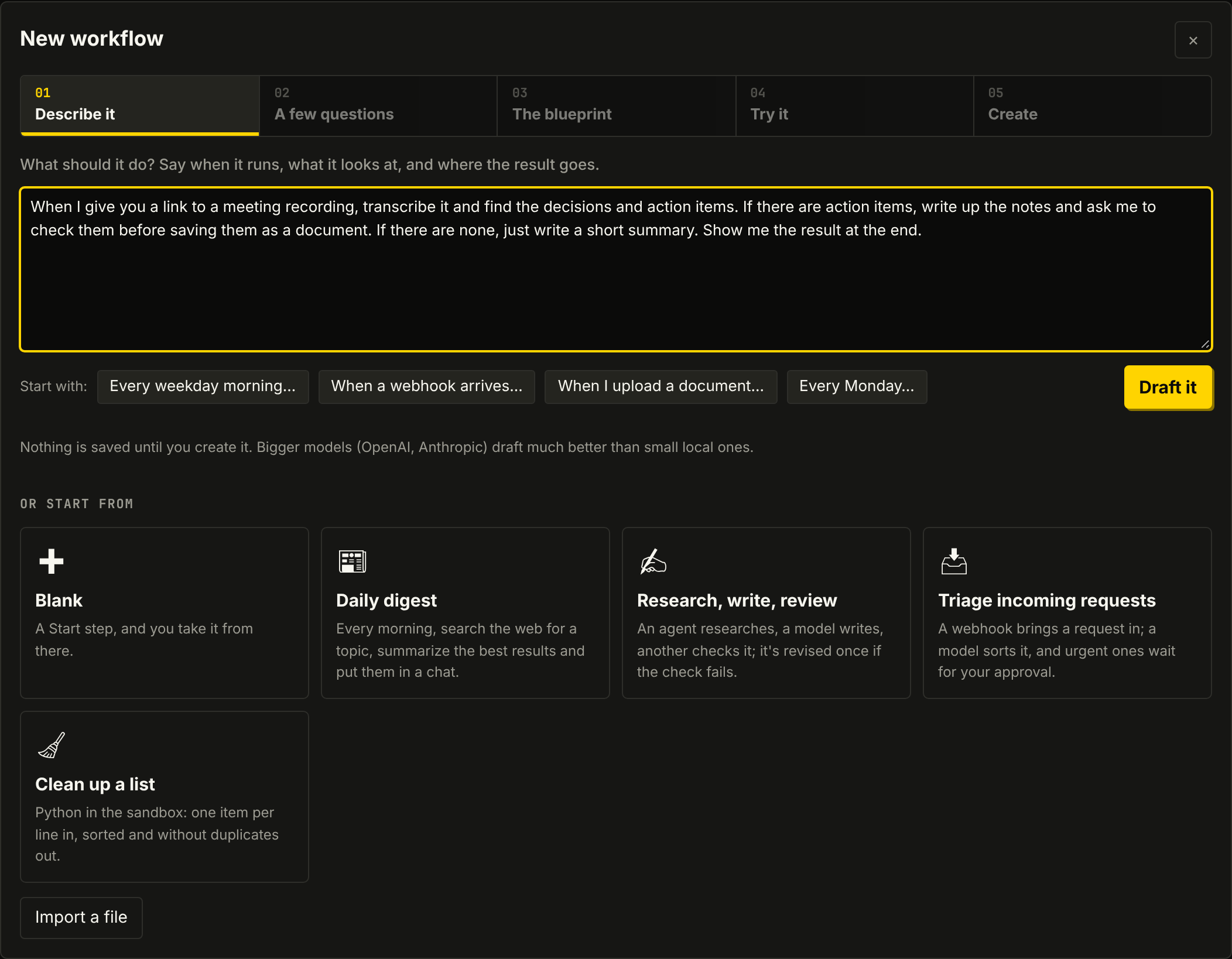
Answer what wasn't clear
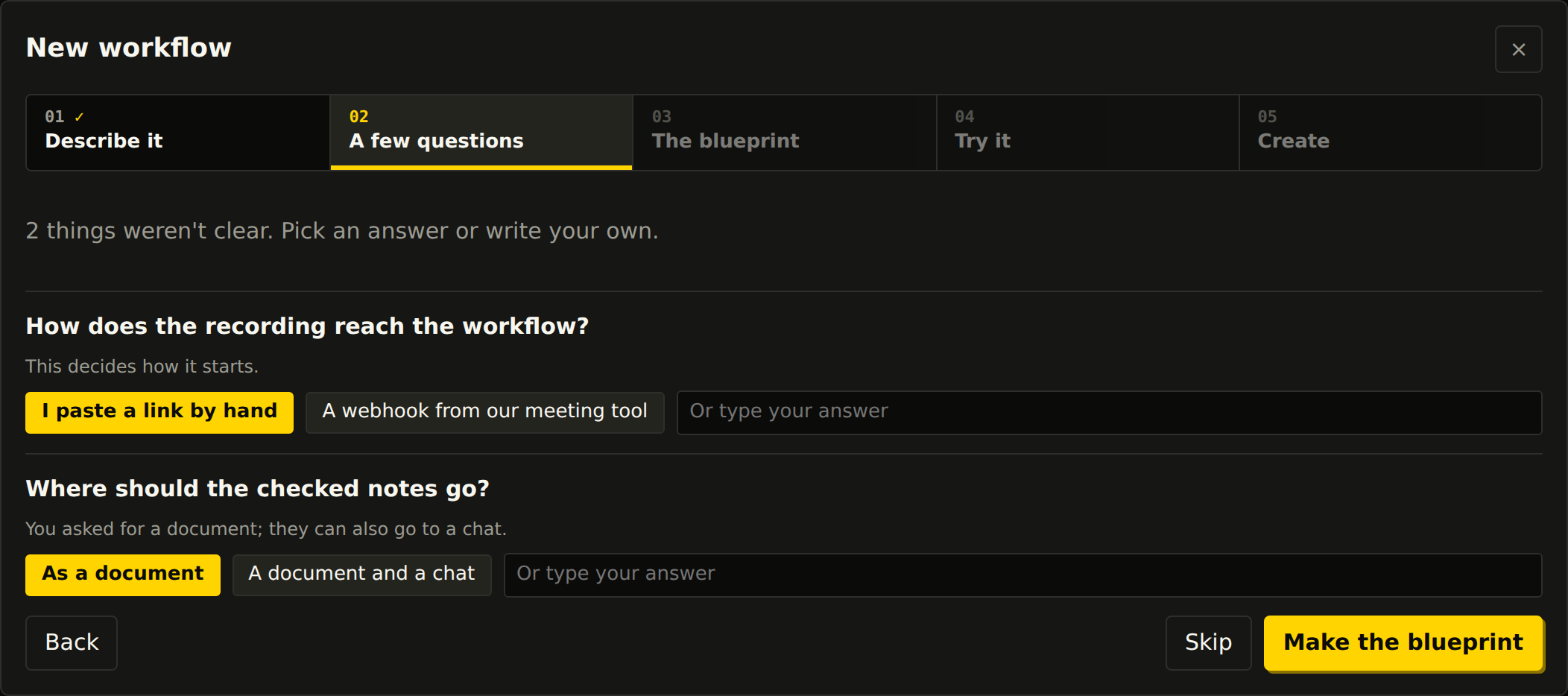
If the description leaves open something that changes the design, the model asks up to three questions, with answers to pick. Choose one, type your own, or press Skip and let it decide.
Read the blueprint, then change it in words
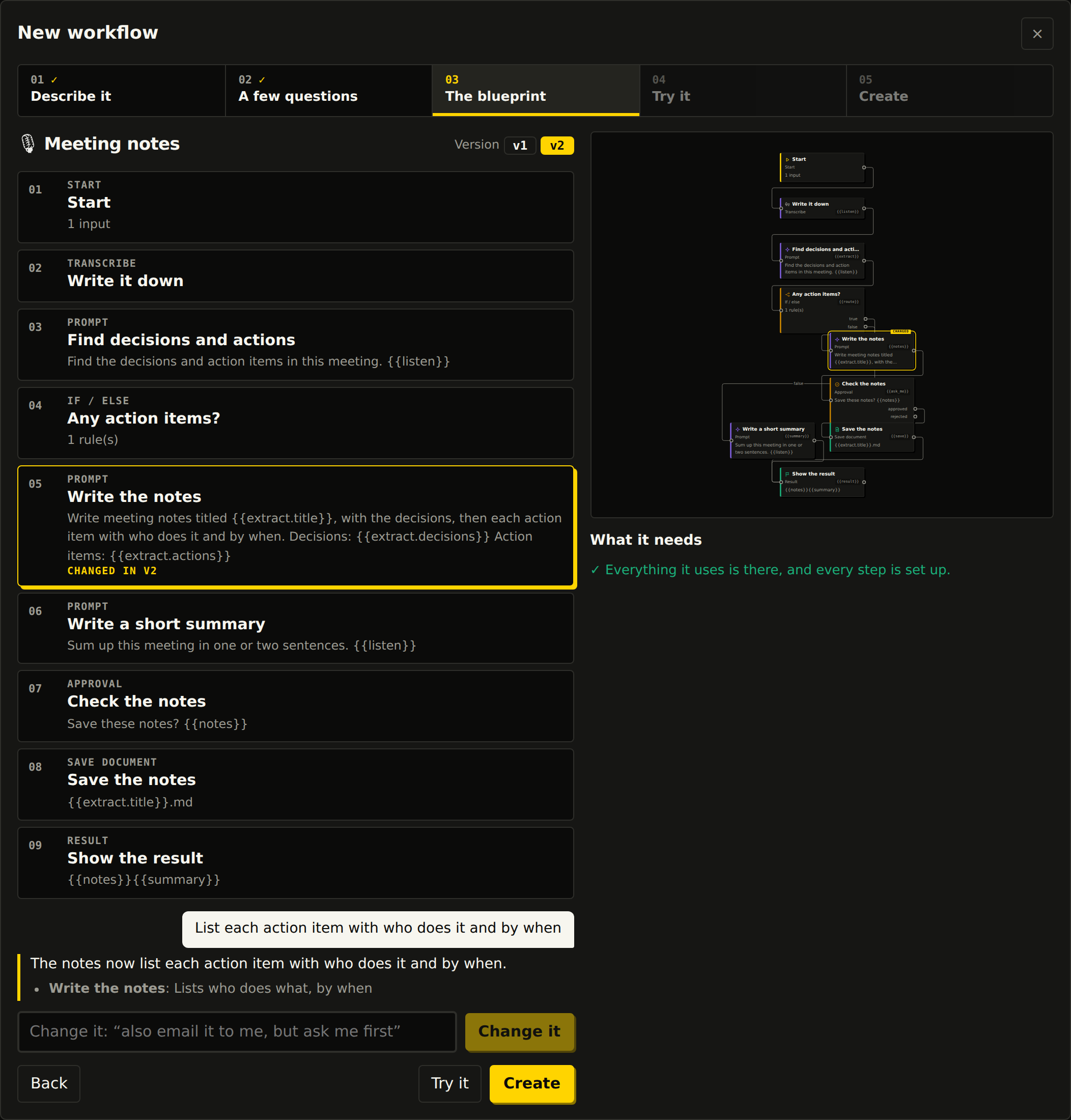
The blueprint lists every step in plain words beside a preview. What it needs tells you if anything is missing or not set up.
Want something different? Ask for it. Ben types "List each action item with who does it and by when." That makes a new version with only the changed steps marked, and you can go back to v1 at any time.
When it looks right, press Create. The workflow opens as a draft and won't run on its own. Try it is also here if you'd like one run before saving.
See it on the canvas
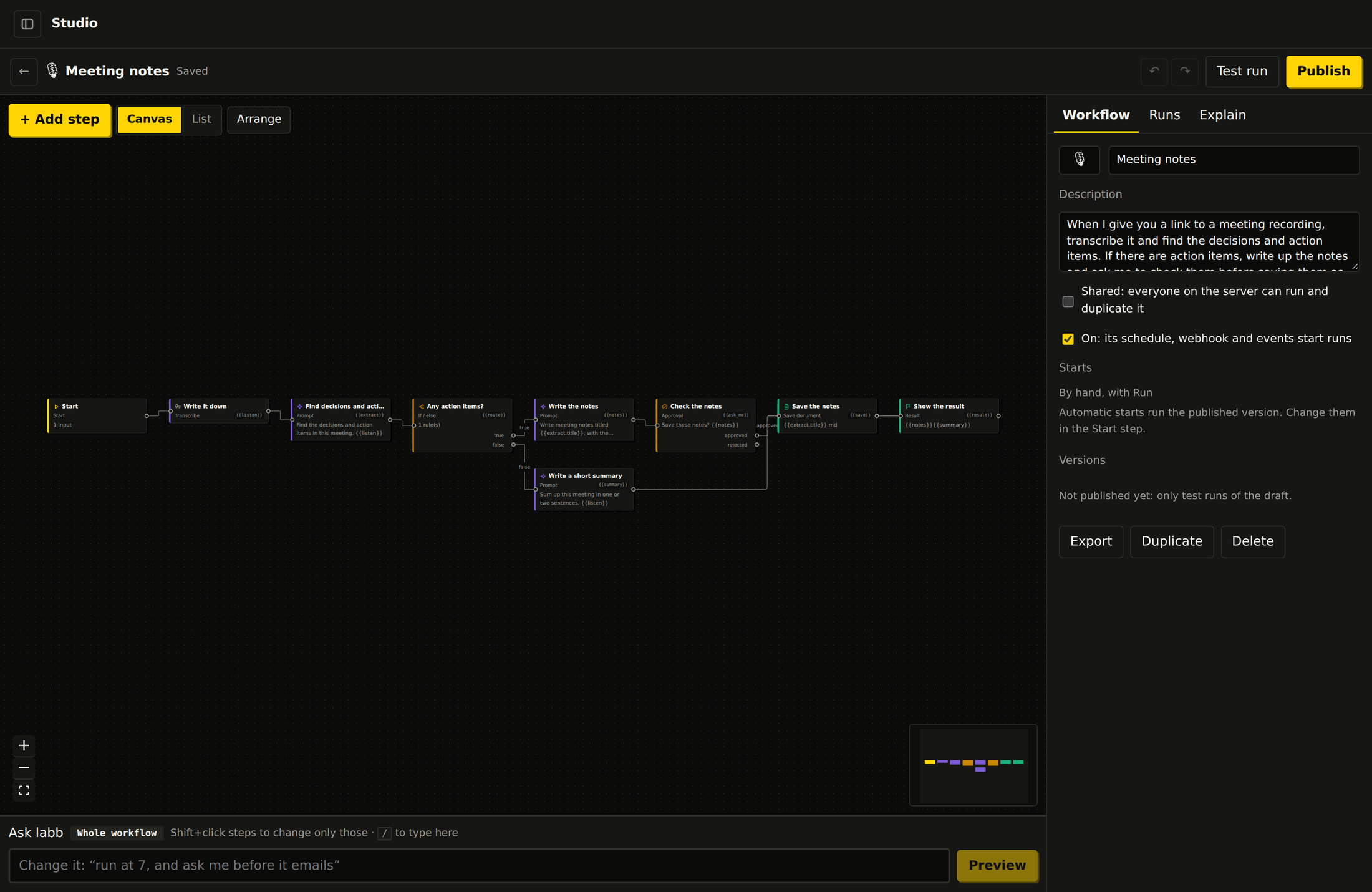
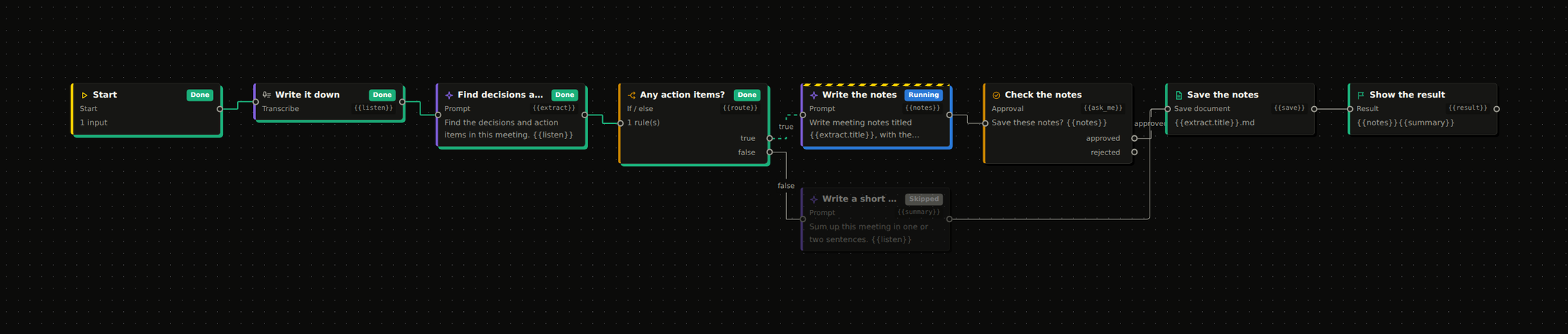
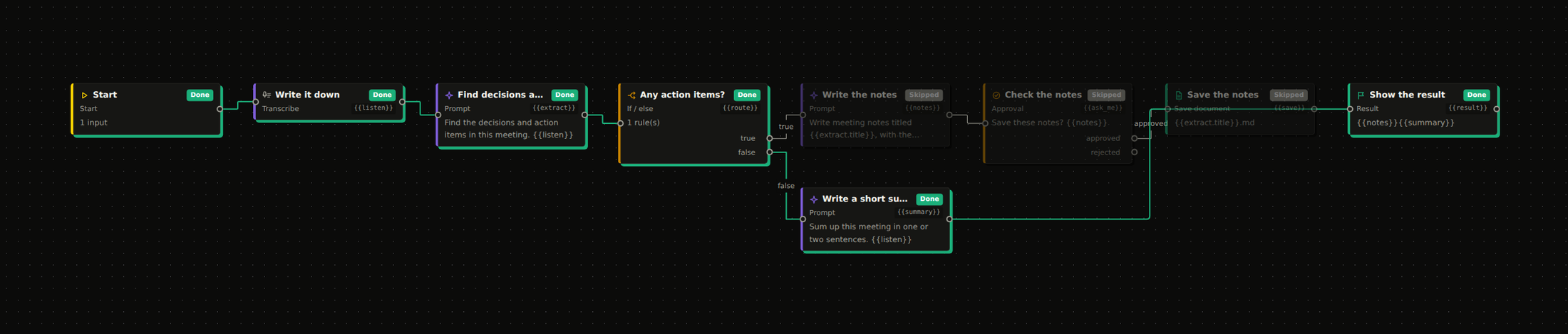
The builder shows the same workflow as connected steps: the if/else splits into a path for meetings with action items and a path for those without, and they meet again at the result. You can drag in more steps, edit any of them, or keep changing it through Ask labb underneath.
Test run on a real recording
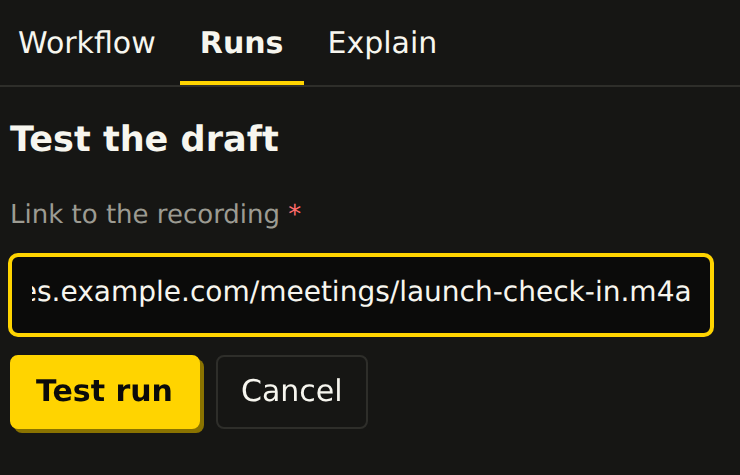
Press Test run. The Start step's inputs become a form, so Ben pastes in a link to the recording of this week's launch check-in with Emma and Liam.
A test run uses the draft, and its steps really happen. The canvas lights up as it goes.
Approve it, or don't
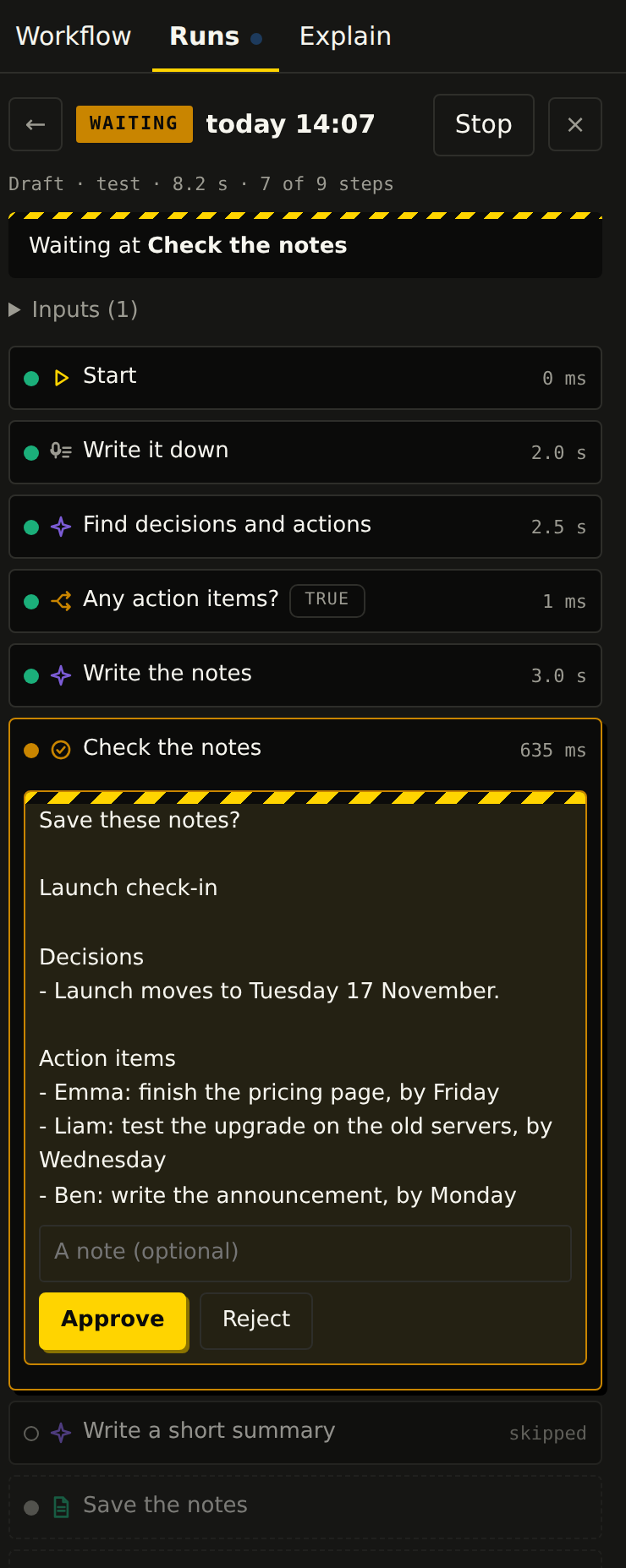
The run stops at the approval step and shows the notes. It keeps waiting until you answer, even if the server restarts in between.
Add a note if you like, then press Approve or Reject. Each answer can lead somewhere different. You can also answer from Waiting for you on Studio's page, or from the terminal.
Check every step
The finished run lists each step with its status and time. Click one to open what went in and what came out, so when an answer looks wrong you can see where it went wrong.
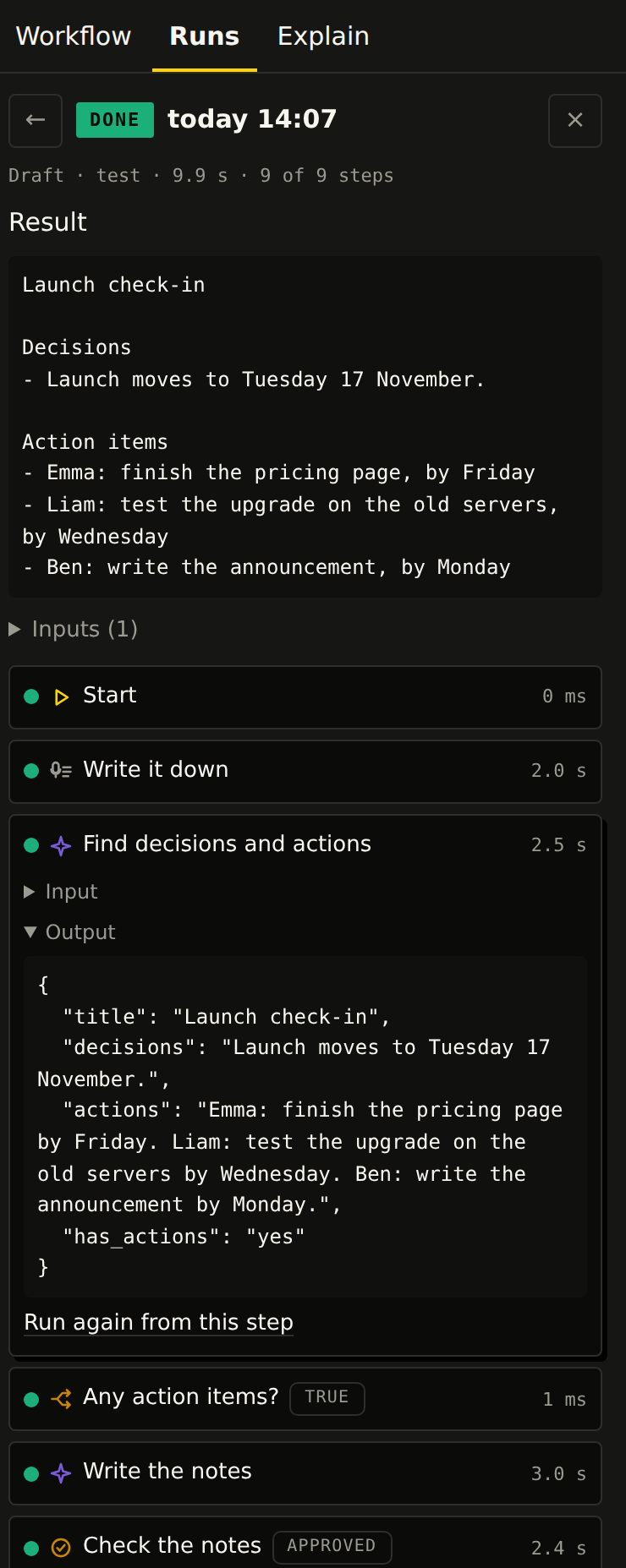
{{extract.has_actions}}.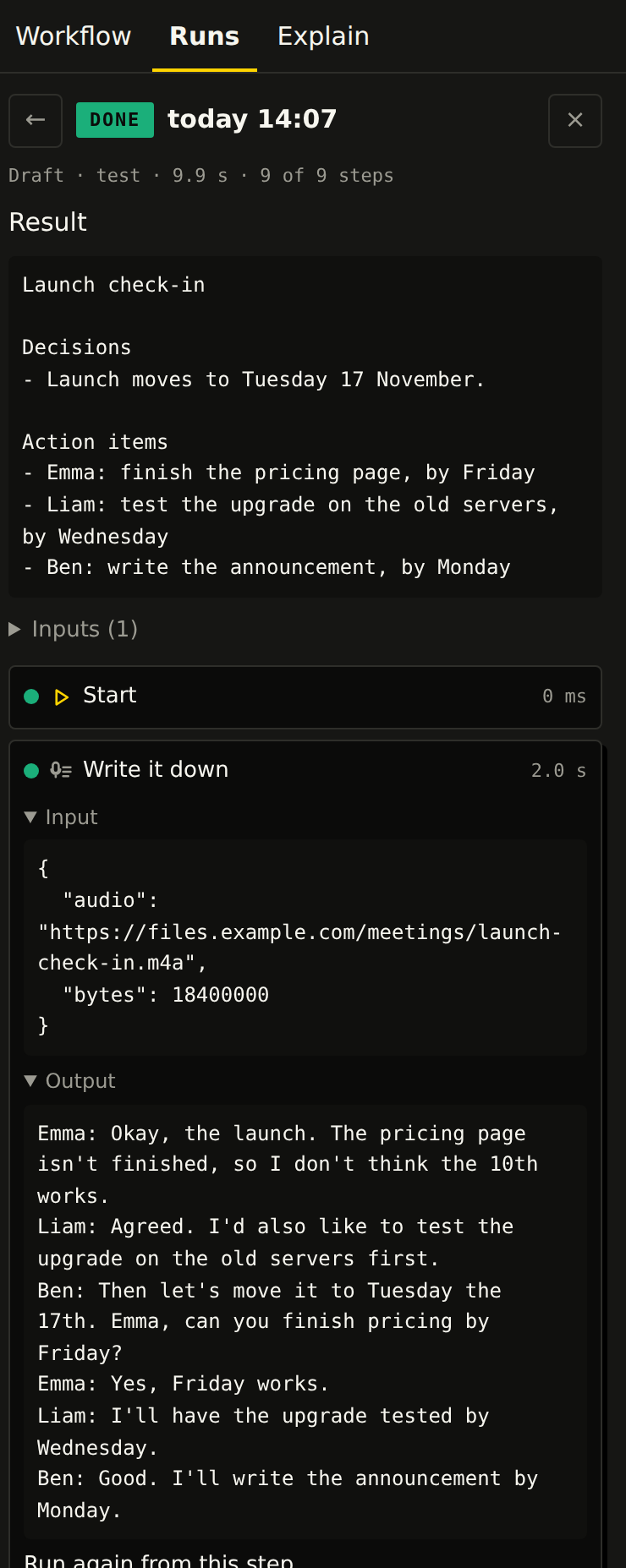
- Run again from this step repeats a run from any step, reusing the results before it.
- Fix it appears when a run fails. labb reads what failed and suggests a change for you to preview.
- Runs keeps the workflow's history, which you can filter to the failed or waiting ones.
Publish it
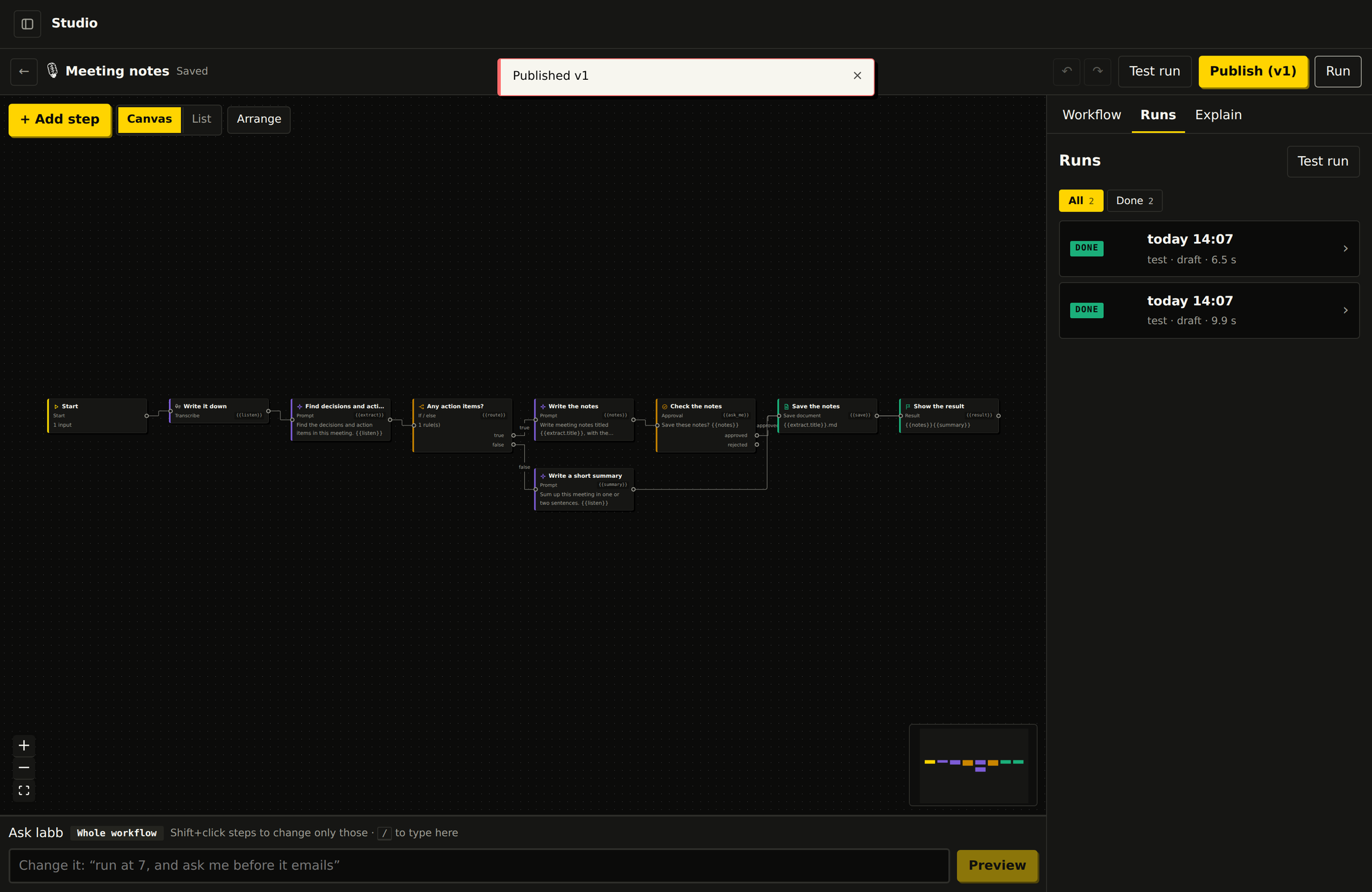
Press Publish when both paths behave. Workflows can then run on their own, or from a webhook your meeting tool calls. The draft becomes v1, and you can keep editing without touching it. Earlier versions are kept, and each run says which version it used.
labb run runs it and prints the result.Try it on your own server
Ben, Emma and Liam are made up, and the transcript and the model's text in these screenshots were scripted. The screens, the checks on the blueprint and the runs themselves come from labb.